
Login to your ExpertSender account and click Workflows → Workflows.
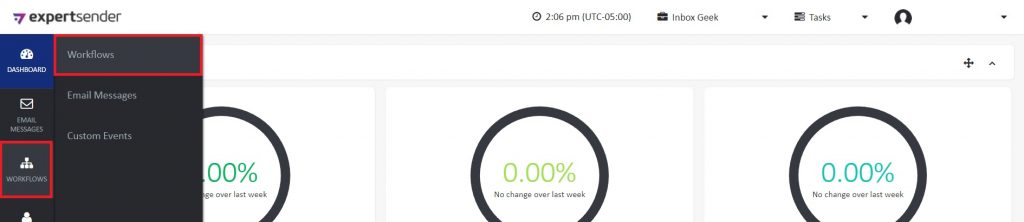
Select Create new workflow.

Drag the Start Event icon to the workspace to create the workflow trigger.
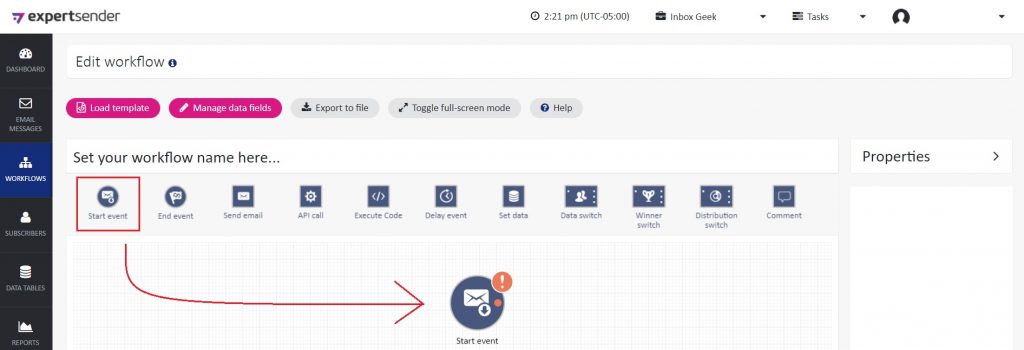
Double click the icon to determine the settings for the trigger.
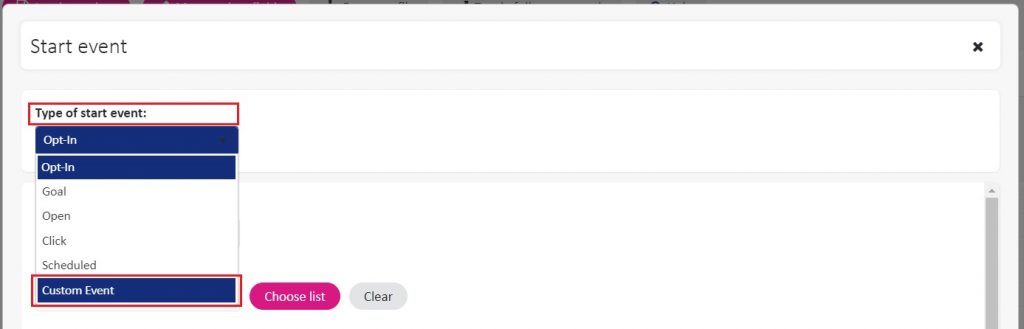
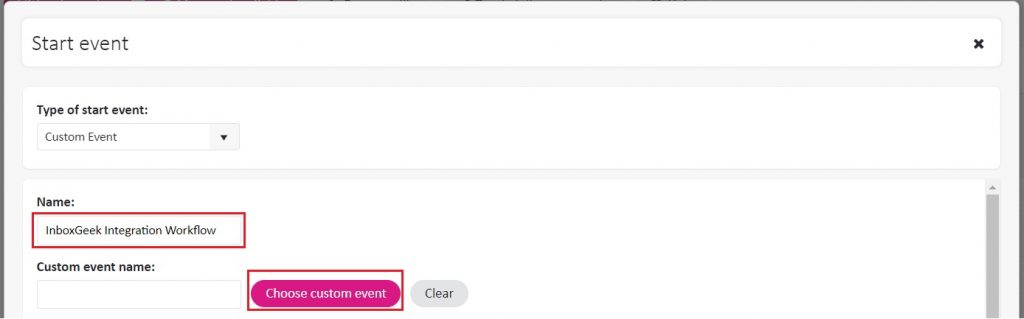
Set the Type of start event as Custom Event.
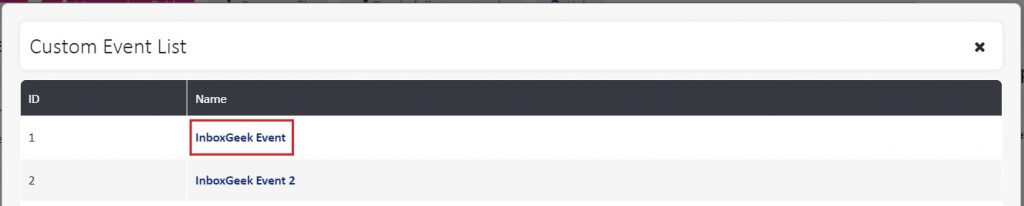
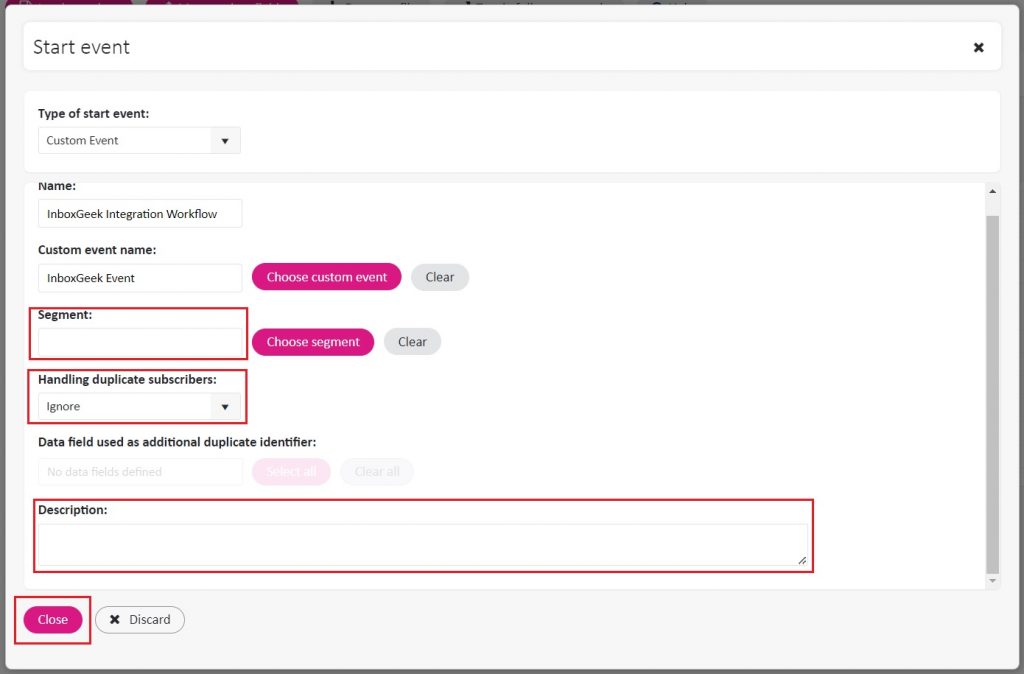
Your next action in this workflow will be Send email. Drag and drop the Send email icon to the workspace and connect it to the trigger.
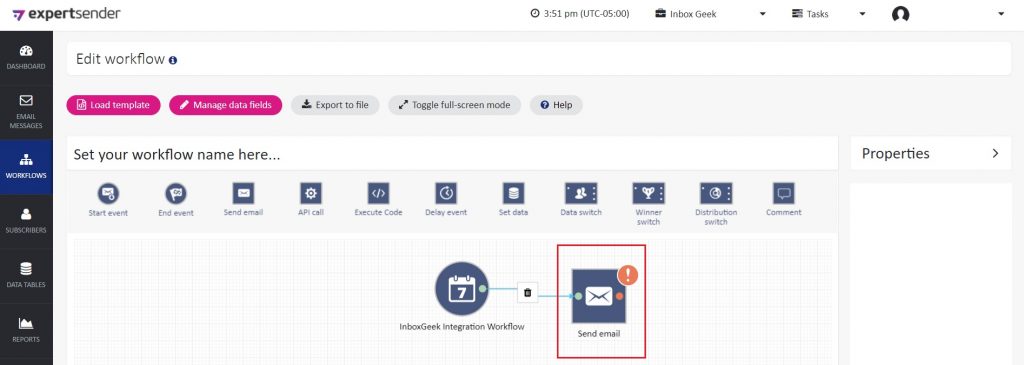
From there, complete the workflow as desired.
Turn it on: After you finish building, save your changes and publish / enable / turn on the automation, workflow, journey, or flow in your ESP. A saved draft that is not turned on will not send. Then send a test from InboxGeek if available: LiveOpens → Integrations → Actions → Send Test Flow.