
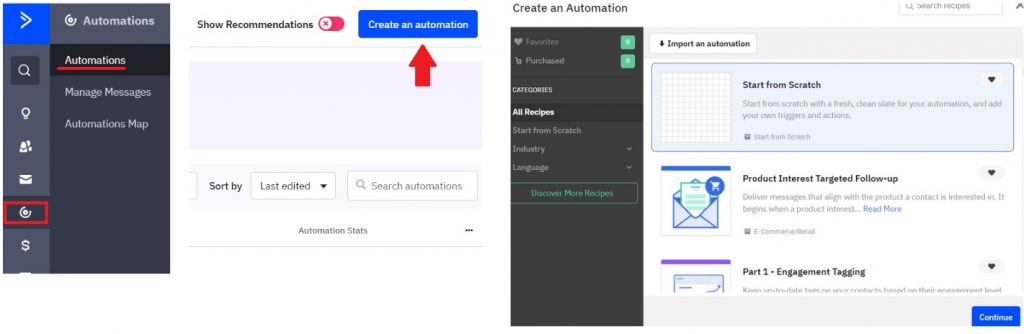
Login to your ActiveCampaign account and click Automations → Create an Automation → Start from scratch
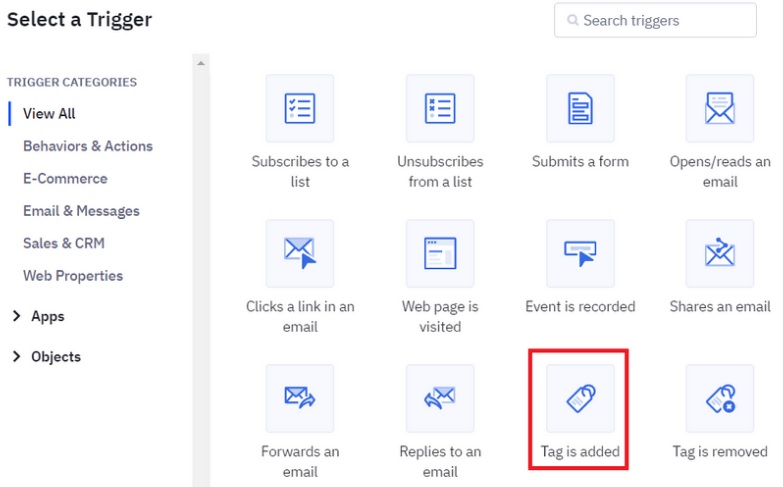
Click Select a Trigger → Tag is added
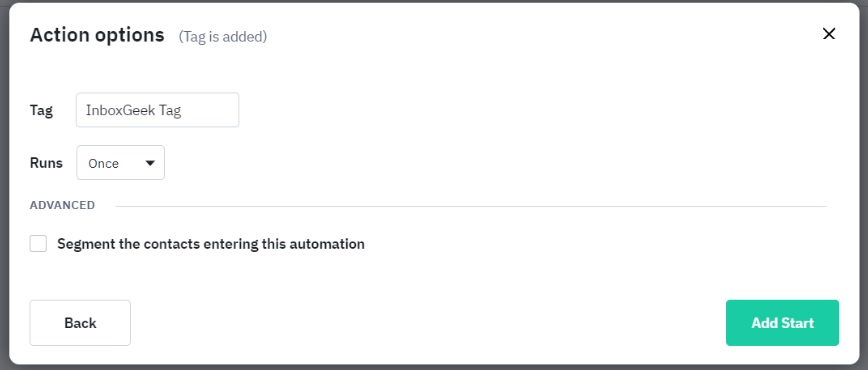
Add the tag that you chose in InboxGeek during the integration. This is the tag that will identify the contacts that received an event from InboxGeek.
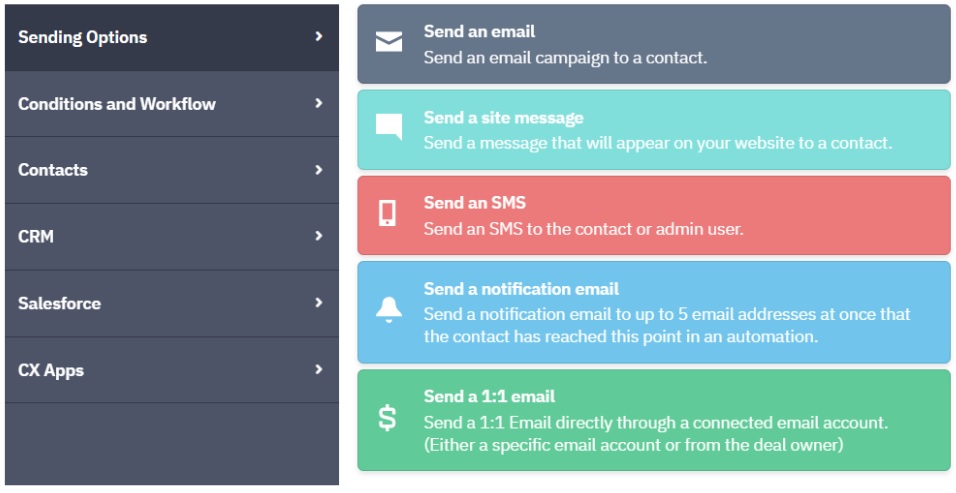
From there, add an action accordingly to whatever you want to do when your contact is online.
Complete the automation as desired.
Turn it on: After you finish building, save your changes and publish / enable / turn on the automation, workflow, journey, or flow in your ESP. A saved draft that is not turned on will not send. Then send a test from InboxGeek if available: LiveOpens → Integrations → Actions → Send Test Flow.