
LiveOpens setup with MailSend: part 1 of 4. Start a new LiveOpens integration in InboxGeek and connect your MailSend account.
Before you start: You can sign in to InboxGeek and to your MailSend account, and your list meets the requirements in Before You Begin. Never paste API keys or tokens into an AI chat; paste them only into InboxGeek.
All parts: 1. Getting Started · 2. List · 3. Integration · 4. Create Your Automation
Important: MailSend may be winding down. MailSend’s parent company has been winding down products, so this integration may stop working. If you rely on MailSend, contact support@inboxgeek.com about alternatives (including the Webhook integration). Existing connections continue while MailSend remains available.
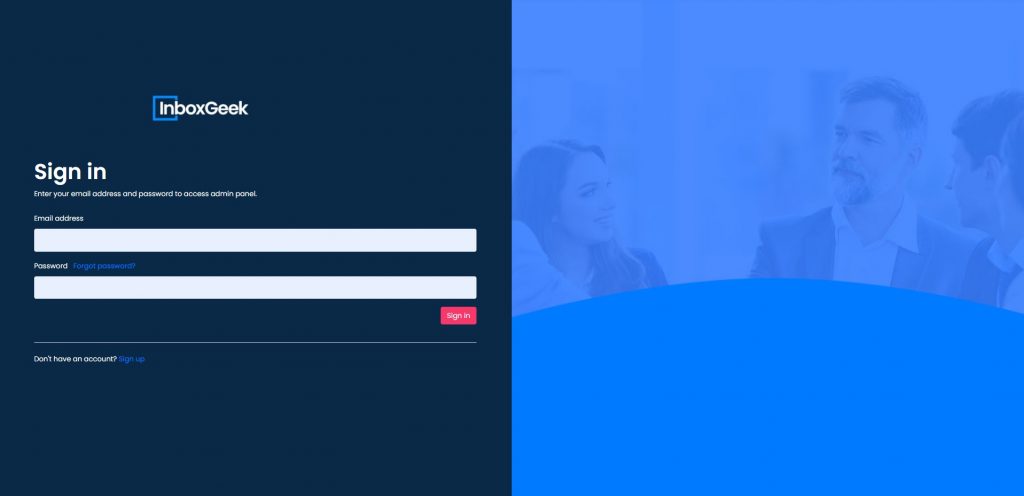
Step 1. Login to your InboxGeek account.
Step 2. Click on LiveOpens → Integrations.

Step 3. Click the Add New button for a new integration.

Step 4. InboxGeek will store all previous platform account identification for quick integration creation. If the account for your new integration is not already stored, click Create new Platform.
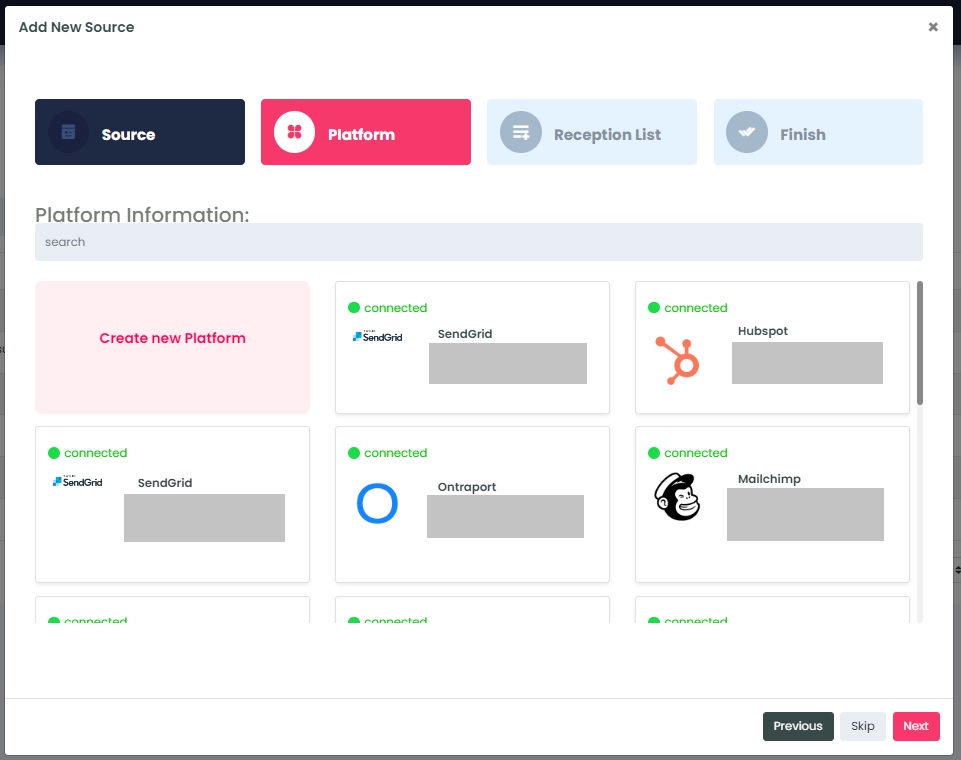
Step 5. From the drop-down menu, select MailSend.

Step 6. To retrieve the API key, login to your MailSend account.
Click on your Profile Icon → Preferences.

Step 7. Click Developers and then copy your API key.

Step 8. Return to InboxGeek and enter the copied API key in the API key field.

Step 9. Once the API key is entered into the API Key field, a new field, Projects, will appear.

Step 10. From the Projects drop-down menu, select the Projects title that you will be using with your LiveOpens integration.

Click Create Platform. InboxGeek will fire a ping to MailSend to confirm all is accurately entered.
If there are no issues then it will add the platform and populate the Next button.
Click Next to move to the next tab, List.
Need help with setup?
Use these options in this order:
- Set up with your AI assistant. Paste this into your AI assistant (ChatGPT, Claude, Gemini, Grok or another): “Please read https://help.inboxgeek.com/ai-setup/ and follow it to help me set up InboxGeek LiveLeads. Start by telling me what you’ll do and wait for my OK.” Full instructions: AI-assisted setup. Never paste passwords, API keys or tokens into an AI chat; type them only into InboxGeek or your email platform.
- Email support. Write to support@inboxgeek.com with the link to the article you were following and what you see on your screen.
- Book an onboarding call. If email support does not get you unstuck, ask for an onboarding call in your email to support@inboxgeek.com.